Friday, November 15, 2013

Backing up your iPad before you update the iOS

You should back up your iPad before you update the iOS. Back up you iPad if you making a major upgrade from iOS6 to iOS7 and also if you are making a minor update from iOS 7.0.3 to 7.0.4.  Each update can cause you to lose settings or data. Back it up first!

The following steps will help most users but are especially useful to students in School District 211.

  1. Back up your data in Notability. To do this you need to open Notability, click on the Settings gearbox at the bottom of the screen, then choose Auto-backup. Choose either Google Drive (you can use your personal Gmail account or the school-issued one) or Dropbox to back up your data. If you want to add a second layer of protection, back your data up to iCloud as well. While you are still in your settings, click on iCloud and then move the slider to On. This will only work if you have enabled iCloud backups which we will cover next.
  2. Back up your iPad. Open the Settings app on your iPad, then click on iCloud, then click on Storage & Backup. Under Backup, move the slider to On for iCloud Backup. Then click on the button that says Back Up Now. This will create a copy of all of the data stored on your iPad. If something goes wrong with your iOS update you will be able to go back to this "copy" of your iPad and start over.
    1. Not enough storage? If you got an error when trying to back up your iPad you either have too many older backups or you are trying to back up too much data. To see if you have older backups, go to Settings, then iCloud, then Manage Storage. It will show you how many backup copies you have, and it will also tell you how much space you will need to make a new backup. If you have older backups go ahead and delete them, then create a new backup. 
    2. Too much data? If you do not have any older backups, that means you are probably backing up too much data. go to Settings, then iCloud to see what is being backed up. Turn off photos - this takes up the most space. You can back up your photos to another location like Google Drive or Dropbox which has much more free storage than Apple offers. Be sure your photos are being backed up elsewhere! Then continue with creating a backup of your iPad.
  3. Update the iOS. Go to Settings, then General, then Software Update. If one is available, then click on Download and Install. It will take anywhere between 5 minutes and an hour depending on the size of the update. You will not be able to use your iPad during the update.
Once the update is complete you will be able to use your iPad again. If you notice missing data or if something went wrong you can go back and restore your iPad using the backup you created earlier. If you need help with any of the above steps please stop by your school technology center and someone will assist you.

NOTE: Once you have iCloud backups turned on, your iPad will back itself up automatically every time it is (a) connected to Wi-Fi, (b) plugged in to a power source, and (c) in sleep mode. Basically, it will back itself up every night when you go to sleep. 

Friday, October 25, 2013

Headphone and microphone settings on a desktop computer

Step One: Confirm the USB is in the correct port in the back of the computer

In Lab 222 which is used by the World Language department the computers have six USB ports in the back. Four ports are together on the left and two more are next to them on the right. Plug the headphones in either port on the right side. Those have more power and work with the headphones best. Do not plug your headphones in the front!


...


Step Two: Check your Playback settings (to play sound through the headphones)

Your audio settings can be found in the tray on the bottom right side of your screen. It is the icon that looks like an audio speaker.
...

Right click on the audio icon and click on Playback devices.

...

In Playback devices you will likely see two devices. One is the internal speakers inside the computer. The other will be the headphone which will be labeled "Speakers - USB Audio". Click the speakers labeled "USB Audio" then click on OK.

...

Step Three: Check your Recording settings (to record with the microphone built into the headphones)

Your audio settings can be found in the tray on the bottom right side of your screen. It is the icon that looks like an audio speaker.  Right click on the audio icon and click on Recording devices. 

In Recording devices you will likely see multiple devices. One or more are for microphones that can plug in through a 3.5 inch connection (what is called a stereo mini connector). Another will be the microphone which will be labeled "Microphone - USB Audio". Click the microphone labeled "USB Audio" then click on OK.

...

Step Four: Check the properties of your microphone (to improve the volume of your recordings)

If your recordings are too soft, or if you cannot hear your recordings at all, it is possible that your microphone volume level is too low. Right click on the audio settings, choose Recording devices, and then right click on the USB Audio microphone. Click on Levels, and then raise the level of the microphone to 40. If you normally speak quietly you could raise the level to 50. Don't raise it to 100! You will pick up ALL the sound around you.

Tuesday, October 15, 2013

Schoology improved their integration with Google Drive, Dropbox, Evernote, and Khan Academy

Schoology made another huge improvement to their LMS today by upgrading their integration with Google Drive and by adding integration with Dropbox, Evernote, and Khan Academy. You now have even better access to the cloud-based files you use in class each day, and it opens up the possibility of allowing your students to create, store, and submit their homework using their preferred storage site.

Click on Resources then Apps on the top menu bar to get to your Resource connections. You will have the option of installing four Resources: Google Drive, Dropbox, Evernote, and Khan Academy. If you have already installed one of these then it will not appear on your list. Click the Resources you want and then click on Install.

Once you have the Resources installed you will be asked for the username and password for each one. Enter them and you will have access to all of your files from within Schoology.


Monday, September 30, 2013

Electronic Recycling Day is October 2 at FHS

The recycling truck is coming back to Fremd High School! If you have electronics that you want to remove from your home you can bring it to the FHS maintenance dock by the end of the day on Wednesday, October 2. A truck from Creative Recycling will arrive the next morning to remove your unwanted electronics.  Creative Recycling is recognized by the Illinois Environmental Protection Agency as an official e-waste recycler.

Bring in anything that has a plug on it (as long as it is not hazardous or radioactive) and Creative Recycling will take it. Creative Recycling will wipe out or destroy data on your old computers as well.
For an official list of acceptable material, click here: http://www.crserecycling.com/services/acceptable-material.html


You can find other locations to recycle your electronics if you miss the one at Fremd on October 2. SWANCC  (Solid Waste Agency of Northern Cook County) has a permanent drop off at the Hoffman Estates Village Hall, and they schedule one-day-only recycling events at various locations all year long. Go to the SWANCC web page to learn more: http://swancc.org/recycling/electronics-recycling

Tuesday, September 24, 2013

I downloaded iOS7 but now I lost some of my data

Like millions of other people around the world, you probably decided to upgrade your iPad to iOS7 the day it was released. In your haste, you may have forgotten to back up your data to iCloud before the upgrade and now you have learned that some things are missing.  Your wireless passwords might be gone. Notability may have disappeared. Things look bleak...

If you are a Fremd High School student and you are using the Symantec Mobile Management (SMM) app then we might be able to help you. Here are the steps you need to follow to try to recover all of your data:

  1. Reset the information inside SMM by going to your Settings, scroll down on the list of settings on the left until you see Mobile MGMT. Click on that, and then move the slider to reset the data.  Close your Settings.
  2. Open the SMM app. You will have to register again by following these directions. You can only register when you are inside Fremd High School so do not try to follow the directions from home. When you are done, the SMM app will close automatically.
  3. Check to see if the registration with SMM worked by opening the SMM app. If the app opens, it worked. If it does not you will have to register again. It might take two tries, but we have not seen anyone have to try it a third time. 
  4. Wait. It could take up to an hour before your wireless keys install themselves and before apps appear inside the SMM.
  5. Reinstall Notability and Explain Everything if they went missing after you upgraded to iOS7. This happened to a small but noticeable number of users. To download them for free you must open the SMM app, click on All at the bottom of the page, and then find Notability and Explain Everything.
  6. Switch your Wi-Fi network from "Guest" to "StudentOne2One" after SMM adds your wireless passwords to your iPad. 
  7. Go back into your Wi-Fi settings, click on the Information button next to the Guest network, and then click on "Forget this Network". This will help to keep you on the StudentOne2One network which has better bandwidth and faster speed.
  8. TURN ON ICLOUD! When you use this free service your iPad will create backups automatically
    every time your iPad is plugged in, locked, and connected to Wi-Fi. Please, please, please turn this on so your data backs up automatically every single day. Go to Settings, then iCloud, then Storage & Backup to turn on iCloud Backup or to create a backup for the first time.
  9. While you are at it, turn on Find My iPad. This will GREATLY improve our ability to help you track down your lost or stolen iPad. Go to Settings, then iCloud, then use the slider to turn on Find My iPad.
After following these directions you might still need assistance. Please stop by the Technology Center at Fremd High School and we will be happy to assist you.

Coming Soon: Schoology will integrate with Dropbox and Evernote (in addition to Google Drive)

This is an exciting message that came directly from Schoology!! They will be expanding your ability to connect to your own personal Ed Tech resources by letting you connect your Schoology account with your Dropbox and Evernote accounts. This is in addition to your Google Drive account which is probably already connected. Khan Academy will also integrate with Schoology as well. 

Read on to get the full message. This has not been posted publicly yet, which is why I added it to my blog. Otherwise I would have just posted a link to this.

ORIGINAL MESSAGE FROM SCHOOLOGY:


We are always looking for new ways to improve your Schoology experience, and this upcoming feature release will be a huge step in the right direction.
Resource Apps are applications that will enable you and your staff to access and use content from third-party vendors and external file repositories directly from the Resource Center. This way all your resources, third-party or not, are always right at your fingertips.
Resource Apps Google Drive screenshot
These integrated resources will behave in the same way as other Schoology resources—you can copy them to courses, distribute them to faculty, align them to standards, and more. In this initial release, you will have access to these four resource apps:
  • Khan Academy
  • Dropbox
  • Google Drive
  • Evernote
Our SkyDrive app (Office 365) will be available in a later release soon afterwards. 
Renaming the Assignment Dropbox
We will be renaming the Assignment Dropbox to “Assignment Submissions.” It will be located in the same place and perform the same function, but its new name will make it distinct from our Dropbox Resource App.
We will publish an overview on the Schoology Blog and a step-by-step help article in our Help Center upon the release of these features. And don’t hesitate to email our dedicated Support Team at help@schoology.com if you have any questions or concerns. Thank you!
Sincerely,
The Schoology Team

Friday, August 30, 2013

AverVision U15: A better document camera that also records flipped lessons

The AverVision U15 document camera is the replacement for our older AverVision 300p document cameras. These new cameras have several distinct advantages:
  1. It is a full HD video camera that records at 30 frames per second
  2. It takes snapshots which you can save to a flash drive built into the camera
  3. It has a built-in microphone for recording your classroom presentations
  4. Its arm is flexible to allow you to adjust the angle and distance of your recordings
  5. It connects through a USB cable which removes some clutter from your workspace

The Sphere software that comes with the U15 document camera allows you to record your lessons and upload them to YouTube or Dropbox which can then be linked to your class in Schoology.  Sphere allows you to record from the document camera or your computer screen, annotate your lessons, and record voice to make compelling videos. (Download Sphere here.)

There is one difference to remember in using the new camera. The U15 runs through the desktop computer in your classroom through a USB cable. To use the camera, turn on the computer and open the Sphere software which is in a folder called AVer Information Inc. You do not have to click the button choosing between the document camera and the computer anymore - simply open the Sphere camera software to begin using the document camera. 

The picture quality going to your classroom projector is much better for two reasons. First, the new cameras have full HD video quality with an auto-focus lens. Second, the shakiness of the image on your projector will go away because the video signal is no longer running from your computer to the document camera to the projector. By eliminating that extra cable the signal is much improved.

Follow this link to the support page for the AverVision U15 document camera: <http://www.averusa.com/education/support/u15.asp

Wednesday, August 21, 2013

Students and faculty need to register their iPad using SMM

Symantec Mobile Management logo
Symantec Mobile Management (SMM) is an app that allows our school district's technology staff to deliver apps, documents, and even wireless network passcodes to all of our school-owned iPads. It takes less than two minutes for a student or teacher to register their iPad using SMM. Once the iPad is registered, we can wirelessly push out free and paid apps to anyone at any time.

To begin, go to the App Store on your iPad and search for SMM. Look for the icon like this. Download the app to your iPad.

The next steps must be taken while you are in Fremd High School. You cannot complete this process from home. For those of you from one of the other four high schools in the district you can still follow these directions, but you will need to be in your own school.

Open the SMM app. Click OK or Accept to every question it asks of you.

Now you need to enroll yourself with the SMM app.  The first box asks you to enter an email or a URL. Do NOT use your email address. Enter this exactly as it appears: @fhs.d211.org and then click on Enroll. If you are at a different high school, use your school letter code (i.e. phs or chs). Click on Accept to any questions it asks you.

Enter your username and password into the SMM app. The username is d211/ followed by your username. For teachers, it would look like this d211/ksorensen and for students it will look like this d211/sorensen2120 with the four digits being part of your specific computer username. If you do not remember your username you can ask your teacher or visit the technology center. The password for teachers is your usual computer password, and for students it is your six digit ID number. Click on the Enroll button to continue. Click on Accept to any questions it asks you.

Continue installing the app by clicking on Accept, Continue, or Install to every question it asks you.  When you get to the box that says Done you can click on Done and close the app.

It can take up to an hour for your wireless keys to download.  In the meantime, continue to use the guest network.  If the school is pushing out apps then the apps will appear in a self-service portal in SMM but it can take up to an hour for those to appear as well.


Go to Symantec's website to learn more about their Symantec Mobile Management software.


Sunday, August 18, 2013

Back up your data to iCloud before you turn in your old iPad or set up your new iPad

iCloud is a service from Apple that lets you back up 5GB of data to their servers. Backing up your iPad to iCloud allows you to do two very valuable things: you can recover your data in case your iPad is lost, stolen, or broken; and you can copy nearly everything from your old iPad to your new iPad in a matter of minutes.

Specifically, teachers or students who sometimes turn in their ipads at some point and then have a new iPad issued to them later should use iCloud. Back up your old iPad and then turn it in. When you get your new iPad, you can restore all your apps and settings on the new iPad. Your new iPad will look and act much like your old one. 

This will also work if you own your own iPad at home, but then you are issued another one through school. You can "copy" your personal iPad's data, apps, and settings to your school-issued iPad very easily.

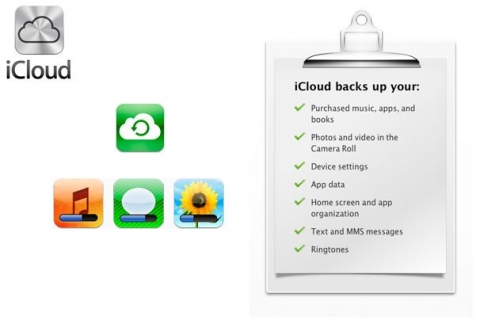
What exactly gets backed up? Photos, videos, and all of your purchased apps are among the most important things. There are others, of course, but these are the big three. The entire list of things that get backed up can be found on a different Apple page called "iCloud Backup." 

Photos and videos take up a lot of space. You could easily exceed your free 5GB of space in photos alone. If you exceed your free 5GB you only have two viable options: move your data to another location like Google or Dropbox which offer much more free storage than Apple, or you can buy more space through Apple's iCloud service. 

Do you need directions on how to back up your iPad? Read Apple's KB article called "iOS: How to back up and restore your content." You can find the backup feature by going to Settings -> iCloud -> Storage & Backup on your iPad 2, 3, or 4. 

Advanced users might be using iTunes Backup instead of iCloud. Some of you might be using BOTH at the same time. If you want to learn which one is best, or if you are interested in why you would use both at the same time, read the Apple article called, "Choosing an iOS backup method (Should I use iTunes or iCloud to back up my iOS device?)."


iPad distribution to Fremd High School students (2013)

Students can pick up their iPads on Monday, August 19 from 1:30pm to 8:00pm and on Tuesday, August 20 from 9:30 to 3:30.  Both of these dates are before the first day of school. If a student cannot pick up his/ her iPad on August 19 or 20 then once school begins the technology center will be open from 7am to 4pm each day. Students will be able to pick up their iPads before school, after school or during a free period.

Students and parents were notified of the iPad distribution dates through a physical letter mailed to their homes and through an update posted to all FHS students via Schoology.  Students will turn in their iPad Loan Agreement Form and their Insurance Form if they are choosing to purchase insurance (it is highly recommended, and the cost has been reduced this year).

Once those forms are turned in, students will be given their iPad, protective case, power block and Lightning cable. They will be able to set up their iPads by following the directions posted to Schoology and also by following along with videos that will be playing in the Media Center.

It is highly recommended that students know their usernames and passwords for Google, Apple ID, and Schoology before they arrive. It will make the process go much faster. If they do not know their usernames or passwords or if they do not have accounts set up ahead of time we will be able to help them.

The overall purpose of distributing iPads before school begins is to avoid using classroom time to set up iPads. Classroom time is extremely valuable, and one thing we heard loud and clear last year is that teachers do not want to waste a single day of instruction.

Monday, August 5, 2013

Update your contact info in Outlook

If you have switched schools, switched departments, been promoted, or entered into matrimony in the last five years then it is quite possible that your contact information in our email system is incorrect. It could also be incorrect in Schoology, Infinite Campus, Mastery Manager, or some other location. We'll get to that in just a moment.

Outlook contact information
Check the information listed in Outlook and submit a Help Desk request under the heading "Email -> Other" if a correction is needed. Check the information by following the directions below.

  1. Open a new message in Outlook, and put your own name in the "To..." field
  2. Right click on your name and choose Contact Card
  3. Check the information in the Contact tab. Your department, office (school initials - FHS), and office phone number are in this field. 
  4. Check the information in "Member of" field. This is a list of the email groups you belong to. Be careful when you request to leave an email group because your boss might think otherwise!
Outlook Contact Card

Outlook contact information

Outlook email groups


If you have recently begun or ended a marriage then a name change might be in order. Be sure to file the Change of Status paperwork with the district Human Resource department to begin the process. Once you receive notification that HR has processed the paperwork then we can help change your name for your network account (computer logon), email address, and all the other software based on your name or email address.

Schoology, Infinite Campus and Mastery Manager
Your username or contact information might also be incorrect in the major software suites we use in our school. We can correct most issues related to names and email addresses. We can also fix your home school in Schoology if it is incorrect. File a Help Desk ticket under the "Other" category for any name change-related requests. Be sure to file the paperwork with HR if it is needed!

New printer names, new printers, color printers, and printing to the Xerox

New printer names
The printers will be renamed using the room number where the printer is located. The printer name will usually end with a 1 but if there is more than one printer in the room then the name might end in a 2 or a 3. For example, a printer in room 2 where there is only one printer will be named FHS-002-1. In room 178 there are three printers which are named FHS-178-1, FHS-178-2, and FHS-178-3. 

Every printer will be labeled on its front panel with its new name. If you want to add a printer, you can see the printer name right on the front of the printer and then add it to your computer by following this link <http://fhsvhprint1/Printers/>. 

New printers
HP 525dn - scan and email documents

The last few outdated printers have been replaced with three different printer models. Nearly all monochrome printers are now four years old or newer.  

The HP 401dn is a small printer than prints 35 pages per minute and can handle up to 50,000 pages per month. 

The HP 601dn is a larger printer than prints 45 pages per minute and can handle up to 175,000 pages per month. 

The HP 525dn is a multi-function printer that can be used to scan documents and email them as PDFs to any email address. There are several in the building including in the technology office. Feel free to use the 525dn any time our doors our open.

Color printers
Color printing has been declining for several years due to the increase in posting presentations and materials online. Students provide a color-rich presentation when using a projector in front of their peers, and they submit their work to the teacher through Schoology, Google, Dropbox, or the school shared drive.

The number of color printers will begin to decrease over time. They will not go away entirely, but some color printers will not be replaced once they pass their life cycle. 

Printing to the Xerox
You can send any of your printed work to the Xerox which allows you to print double-sided, collate, and staple your work. It can handle large print jobs, too. You can skip the faculty services line and print it directly to the Xerox yourself. If you are printing off old files that are not saved to your computer, take that stack of files to the technology office and scan them as PDFs. Then print them on the Xerox.

Add the Xerox to your printer list by going to <http://fhsvhprint1/Printers/> and add the last printer on the list Xerox Teachers HOLD.

Sunday, August 4, 2013

Bring your laptop in for a check up

Have you brought your computer in for a check-up lately? Drop it off in the technology department so we can get it running as good as new!

I know what you're going to say: "I don't want my computer re-imaged!" It's a valid statement. 
So there are two options for you that will be available starting August 12, 2013.

Option one: the check-up
We will simply run updates and check your laptop for viruses. We will also clean your keyboard and screen, replace your battery to give your computer longer life, and label your power cord so your coworkers stop "borrowing" yours. That's it! We promise.

Option two: full re-image
All of your software will be updated when your computer is re-imaged. This helps to guarantee that your computer is running best, but it also means that you need to back up all your data (files, photos, songs, etc.) before you turn it in. You should keep your files online anyway (Google Docs, Dropbox, or H Drive) but if you leave something on your computer then it will be erased. So be careful! Your computer will still get a nice cleaning and a new laptop battery, too.

Option three: Office 2013 AND Windows 8
Wait, there were only supposed to be two options. Where did this magical third choice come from? Well, FHS teachers, you are in for an amazing year. Option three is the installation of Office 2013 on your laptop. This will NOT require a re-imaging of your computer. (Don't forget, you can buy Office 2013 for your home computer for about $10.)

Windows 8 is also coming to your laptop. Lenovo tablet users will be especially interested in Windows 8. Get more from your touch-screen computer with Windows 8.  This will not be available until late September as Microsoft has not officially released a major update to Windows 8. Your computer WILL need to be re-imaged if you want Windows 8, so back it up accordingly.

Rules and Terms
Yes, there are rules to this amazing offer. First, you need to bring your computer in before 9 am if you want it back by the end of the day. Second, we will NOT be able to update any computers on August 19, 20 or 21 due to last-minute requests related to the first day of school. I don't think there is a third condition, but I reserve the right to add one later if needed.

One-to-one teachers can pick up their iPad 4s

FHS teachers in the one-to-one program can trade in their iPad 2s for their iPad 4s beginning Tuesday, August 6, 2013.  Please bring your iPad 2, power cord, and case when you are ready to turn it in.

The technology office's summer hours are 8am to 3pm.